jira-kanban
Displays Jira issues in an interactive Kanban board with customizable columns, swimlanes, WIP limits, and estimation tracking.
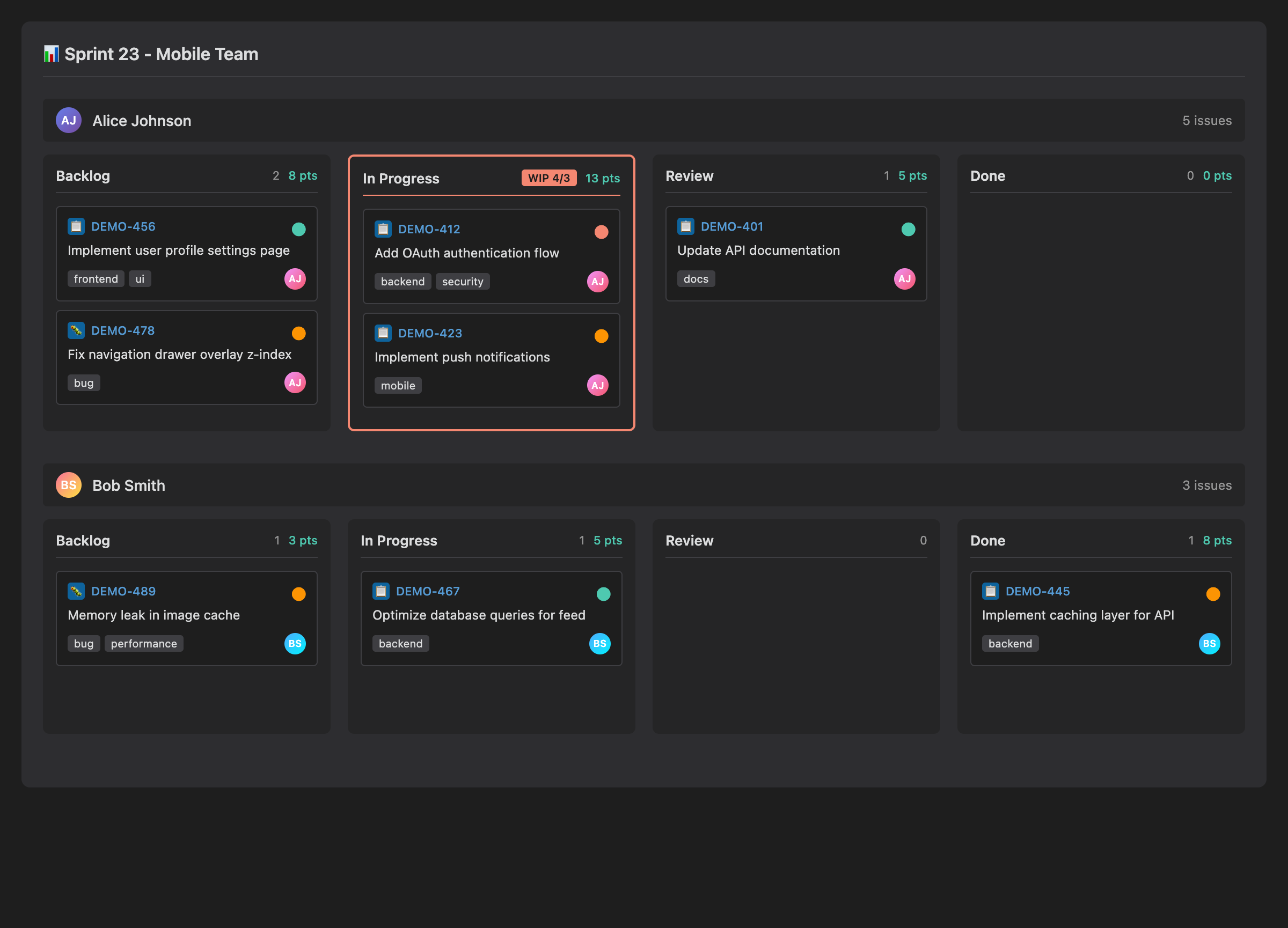
Basic Usage
The simplest kanban board requires only a JQL query and column definitions:
```jira-kanban
query: project = DEMO AND sprint in openSprints()
column: To Do
  statuses: To Do, Open
column: In Progress
  statuses: In Progress, In Development
column: Done
  statuses: Done, Closed
```
Short Syntax for Simple Columns
For quick setup, you can use comma-separated column names that match status names exactly:
```jira-kanban
query: assignee = currentUser() AND resolution = Unresolved
columns: TODO, IN PROGRESS, DONE
```
Note: Short syntax assumes each column name corresponds to a single status with the same name (case-insensitive). For multiple statuses per column or WIP limits, use the detailed column: syntax.
Configuration Parameters
| Parameter | Type | Default | Description |
|---|---|---|---|
query | string | required | JQL query to fetch issues for the board |
account | string | first account | Account alias for multi-account setups |
columns | string or list | required | Column definitions (short or detailed syntax) |
fields | string | KEY, SUMMARY, PRIORITY, ASSIGNEE | Comma-separated list of fields to display on cards |
limit | number | unlimited | Maximum number of issues to fetch |
showUnmapped | boolean | true | Show issues that don't match any column status in an "Unmapped" column |
estimationField | string | null | Field name for story points or time estimation (e.g., Story Points, customfield_10016) |
estimationType | points or time | points | How to interpret estimation values |
hoursPerDay | number | 8 | When estimationType: time, convert hours to days using this divisor |
swimlaneBy | string | null | Group issues into horizontal swimlanes by field (assignee, reporter, epic, parent, custom field name, or customfield_XXXXX) |
showEmptySwimlanes | boolean | false | Show swimlanes even if they have no issues |
noValueSwimlane | string | "No Value" | Label for swimlane when the grouping field is empty |
Column Definitions
Detailed Syntax
Each column can map to multiple Jira statuses and optionally have a WIP (Work In Progress) limit:
```jira-kanban
query: project = DEMO
column: Backlog
  statuses: To Do, Open, Backlog
column: In Progress
  statuses: In Progress, In Development
  wip: 3
column: Review
  statuses: Code Review, In Review, QA
  wip: 5
column: Done
  statuses: Done, Closed, Resolved
```
WIP Limits
When a column exceeds its wip limit, it will be visually highlighted (typically with a warning color). This helps teams follow Kanban principles by limiting work in progress.
Example: If wip: 3 is set for "In Progress" and 4 issues are in that column, the column header will show a warning indicator (see the red border and "WIP 4/3" badge in the screenshot above).
Status Mapping
- Case-insensitive matching:
In Progress,in progress, andIN PROGRESSall match the same status - Multiple statuses per column: Group related statuses (e.g.,
In Development,In Progress) into one visual column - Unmapped statuses: Issues with statuses not listed in any column appear in the "Unmapped" column (unless
showUnmapped: false)
Fields
The fields parameter controls what information appears on each issue card. Available field types:
| Field Type | Description | Example |
|---|---|---|
KEY | Issue key (e.g., DEMO-123) | Always clickable to open detail modal |
SUMMARY | Issue title | |
STATUS | Current status badge with days in status | Color-coded, shows "5d" or "today" |
PRIORITY | Priority icon and name | Highest, High, Medium, Low, Lowest |
ASSIGNEE | Assignee name with avatar | Shows "Unassigned" if empty |
REPORTER | Reporter name with avatar | |
TYPE | Issue type icon and name | Story, Task, Bug, etc. |
LABELS | Issue labels as badges | |
DUE_DATE | Due date formatted | |
CUSTOM_FIELD | Custom field value | Use $FieldName or $customfield_XXXXX syntax |
Custom Field Syntax
To display custom fields, use the $ prefix:
- By friendly name:
$Story Points(must match field name in Jira exactly) - By field ID:
$customfield_10016(use Jira's internal field ID)
Important: Custom fields must be configured in the plugin settings under your account's "Custom Fields" section before use.
Example with custom fields:
```jira-kanban
query: project = DEMO
columns: TODO, IN PROGRESS, DONE
fields: KEY, SUMMARY, PRIORITY, $Story Points, $Team
```
Estimations
Track and visualize story points or time estimates:
Story Points
```jira-kanban
query: project = DEMO AND sprint in openSprints()
columns: TODO, IN PROGRESS, DONE
estimationField: Story Points
estimationType: points
```
Each column will show:
- Total points in the column
- Sum of estimates for all issues in that column
Time Estimation
For time-based estimation (hours), you can convert to work days:
```jira-kanban
query: assignee = currentUser()
columns: TODO, IN PROGRESS, DONE
estimationField: Original Estimate
estimationType: time
hoursPerDay: 8
```
estimationType: timetreats values as hourshoursPerDay: 8means 8 hours = 1 work day- Column headers show totals in days (e.g., "3.5d" for 28 hours)
Using custom field ID for estimation:
```jira-kanban
query: project = DEMO
columns: TODO, IN PROGRESS, DONE
estimationField: customfield_10016
estimationType: points
```
Swimlanes
Swimlanes group issues horizontally by a field value, creating sub-sections within each column.
Group by Assignee
```jira-kanban
query: project = DEMO AND sprint in openSprints()
columns: TODO, IN PROGRESS, DONE
swimlaneBy: assignee
```
Creates swimlanes for:
- Each unique assignee
- "No Value" swimlane for unassigned issues (customize with
noValueSwimlane)
Group by Reporter
```jira-kanban
query: team = "Backend" AND resolution = Unresolved
columns: BACKLOG, IN PROGRESS, REVIEW, DONE
swimlaneBy: reporter
```
Group by Epic
Track progress across epics:
```jira-kanban
query: project = MOBILE
columns: TODO, IN PROGRESS, DONE
swimlaneBy: epic
showEmptySwimlanes: true
```
Note: Epic link field is auto-detected. The plugin tries:
Epic Linkfield (Jira Cloud/older versions)Parentfield (Jira Cloud next-gen projects)customfield_10014(common default)
If your epic field has a different ID, configure it in plugin settings.
Group by Parent
```jira-kanban
query: type = Subtask
columns: TODO, IN PROGRESS, DONE
swimlaneBy: parent
```
Shows subtasks grouped under their parent issues.
Group by Custom Field
```jira-kanban
query: project = ENTERPRISE
columns: BACKLOG, IN PROGRESS, DONE
swimlaneBy: Team
```
Or using field ID:
```jira-kanban
query: project = ENTERPRISE
columns: BACKLOG, IN PROGRESS, DONE
swimlaneBy: customfield_10050
```
Empty Swimlanes
By default, only swimlanes with issues are shown. To display all possible values (e.g., all team members even if they have no assigned issues):
```jira-kanban
query: sprint in openSprints()
columns: TODO, IN PROGRESS, DONE
swimlaneBy: assignee
showEmptySwimlanes: true
```
Customizing "No Value" Label
When issues have no value for the swimlane field (e.g., unassigned), they appear in a default swimlane:
```jira-kanban
query: project = DEMO
columns: TODO, IN PROGRESS, DONE
swimlaneBy: assignee
noValueSwimlane: Unassigned Tasks
```
Days in Status
Each kanban card displays how long the issue has been in its current status. This helps identify stale issues and track cycle time.
- Display format: Shows next to the status badge (e.g., "5d" for 5 days, "today" for same-day changes)
- Calculation: Based on the issue's changelog history
- Fallback: If no status transition is found, uses the issue creation date
This feature requires no configuration and works automatically for all kanban boards.
Interactive Features
All issues in the kanban board support the same interactive features as other components:
Click to View Details
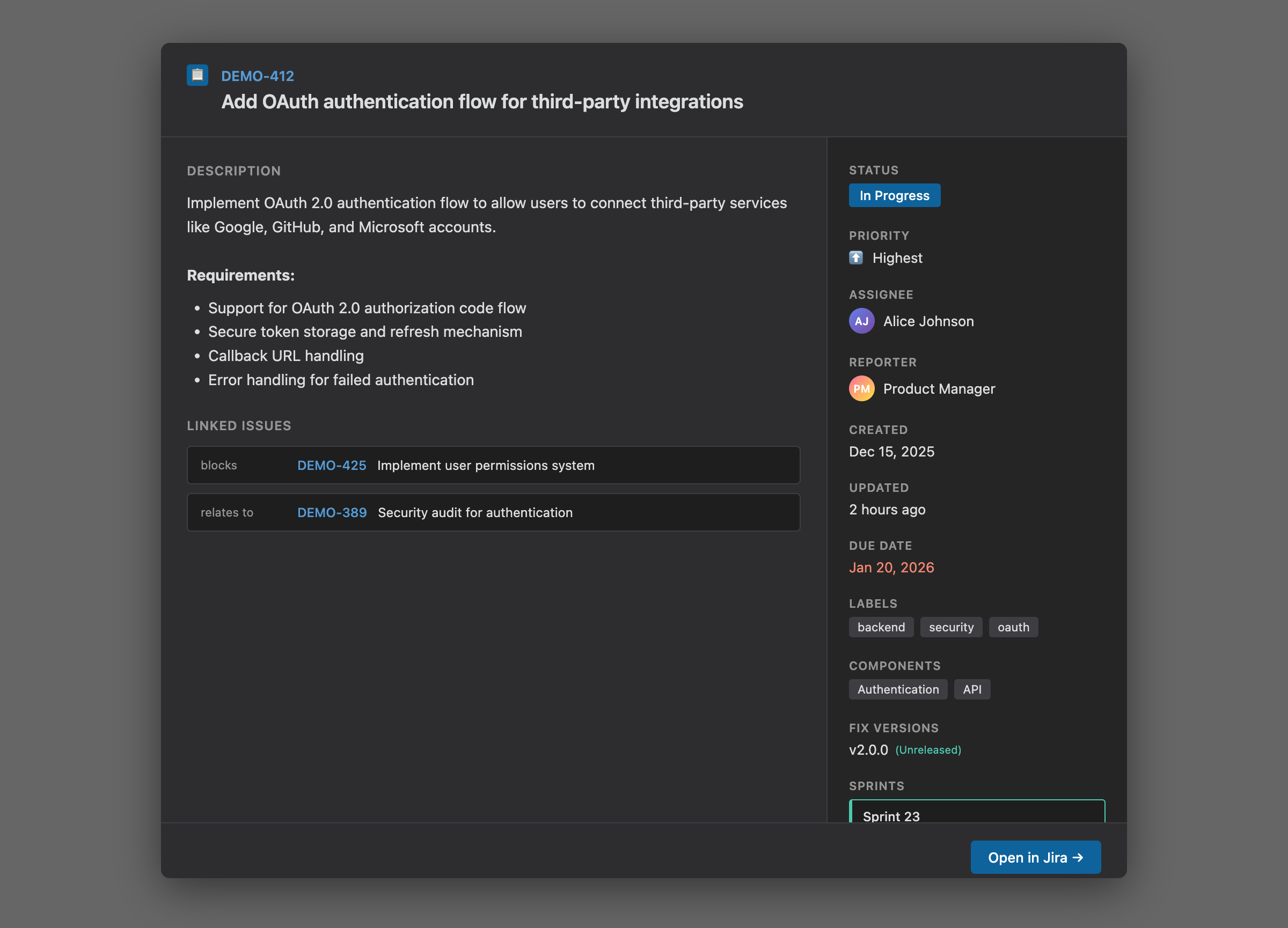
Click on any issue key to open the Issue Detail Modal with:
- Full description
- Linked issues
- Complete field information (status, priority, assignee, reporter, dates, labels, components, fix versions)
- Sprint information (sorted with active sprints first)
- Time tracking with progress bar
- "Open in Jira" button
Right-Click Context Menu
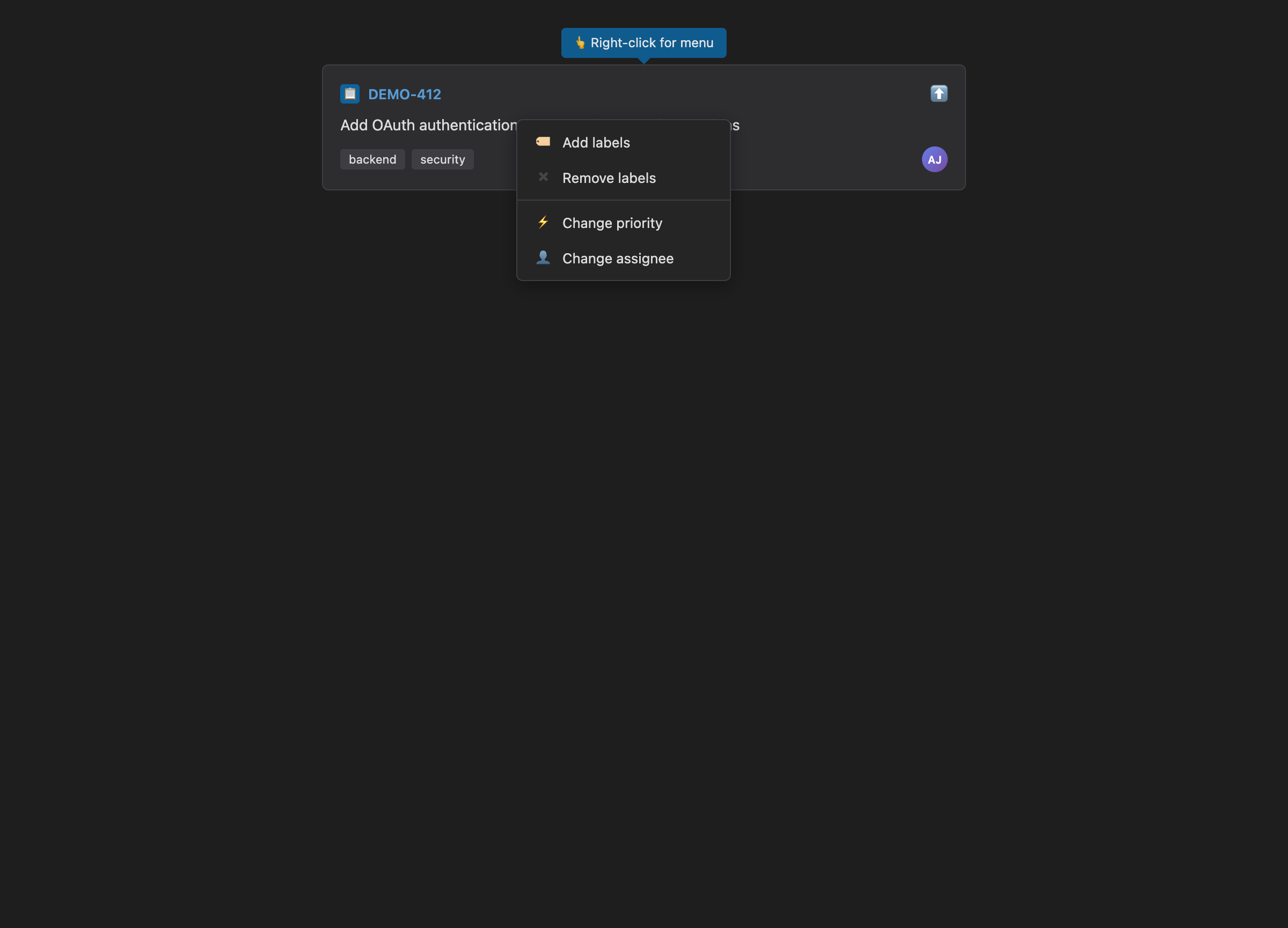
Right-click on any issue card for quick actions:
- Add labels - Choose from predefined labels (configured in settings)
- Remove labels - Remove existing labels from the issue
- Change priority - Select from available priorities in Jira
- Change assignee - Choose from predefined assignees or search for users
- Assign to fields - Bulk update custom user-type fields (Code Reviewer, QA Engineer, etc.)
All changes update the issue in Jira, refresh the cache, and re-render the board automatically.
Label Management
Predefined labels can be configured in:
- Settings → Jira Issue → [Your Account] → Labels
- Add frequently used labels for quick access
- Right-click any issue → "Add labels" to apply
Assignee Search
When changing assignees:
- See predefined assignees configured in settings
- Search for any user by typing (minimum 2 characters)
- Search results appear with avatars
- Select "Unassigned" to remove the current assignee
Advanced Examples
Sprint Kanban with Team Swimlanes
```jira-kanban
query: project = MOBILE AND sprint in openSprints()
account: jira-cloud

column: Backlog
  statuses: To Do, Open
column: In Progress
  statuses: In Progress, In Development
  wip: 3
column: Review
  statuses: Code Review, In Review
  wip: 2
column: Testing
  statuses: QA, Testing
column: Done
  statuses: Done, Closed

swimlaneBy: Team
showEmptySwimlanes: true
estimationField: Story Points
estimationType: points
fields: KEY, SUMMARY, PRIORITY, ASSIGNEE, LABELS, $Story Points
```
Personal Task Board
```jira-kanban
query: assignee = currentUser() AND resolution = Unresolved ORDER BY priority DESC
columns: TODO, IN PROGRESS, REVIEW, DONE
fields: KEY, SUMMARY, PRIORITY, DUE_DATE, LABELS
limit: 50
showUnmapped: false
```
Epic Progress Board
```jira-kanban
query: project = PLATFORM AND type = Epic
column: Not Started
  statuses: To Do, Open
column: Active
  statuses: In Progress
column: Completed
  statuses: Done, Closed

estimationField: Story Points
estimationType: points
fields: KEY, SUMMARY, STATUS, ASSIGNEE, $Story Points, DUE_DATE
```
Time-Based Board with Hours
```jira-kanban
query: team = "Support" AND created >= -7d
columns: NEW, IN PROGRESS, RESOLVED
estimationField: Original Estimate
estimationType: time
hoursPerDay: 8
fields: KEY, SUMMARY, PRIORITY, ASSIGNEE, REPORTER
swimlaneBy: reporter
```
Multi-Project Board with Custom Fields
```jira-kanban
query: project in (WEB, MOBILE, API) AND sprint in openSprints()

column: Backlog
  statuses: To Do, Open, Backlog
column: Design
  statuses: Design, UI Review
  wip: 2
column: Development
  statuses: In Progress, In Development, Code Review
  wip: 5
column: QA
  statuses: Testing, QA, Ready for QA
  wip: 3
column: Deployed
  statuses: Done, Closed, Deployed

swimlaneBy: customfield_10050
estimationField: customfield_10016
estimationType: points
fields: KEY, SUMMARY, TYPE, PRIORITY, ASSIGNEE, $Sprint, $Team, LABELS
limit: 100
```
Troubleshooting
Unmapped Statuses
If many issues appear in the "Unmapped" column:
- Check your Jira instance for the exact status names (they are case-insensitive but must match exactly)
- Add missing statuses to your column definitions
- Use
showUnmapped: falseto hide unmapped issues entirely
Epic Field Not Detected
If swimlaneBy: epic doesn't work:
- Go to Settings → Jira Issue → [Account] → Custom Fields
- Find the field with
Epic LinkorParentin its name - Copy the field ID (e.g.,
customfield_10014) - Configure:
swimlaneBy: customfield_10014
Custom Field Not Found
Error: Custom field X not found
Solution:
- Settings → Jira Issue → [Account] → Custom Fields
- Click "Refresh Custom Fields" to fetch from Jira
- Verify the field name or ID exists in the list
- Use exact field name or
customfield_XXXXXID in your config
WIP Limits Not Showing
Ensure you're using the detailed column syntax:
column: In Progress
  statuses: In Progress
  wip: 3
Not the short syntax: columns: TODO, IN PROGRESS, DONE
Performance Issues
For boards with many issues (100+):
- Add a
limitparameter to cap results - Use more specific JQL queries (filter by sprint, assignee, date range)
- Reduce the number of fields displayed
- Check Settings → Advanced → Batch Delay (increase if needed)
- Enable rate limiting in account settings
Commands
You can insert a kanban board template quickly:
- Open the Command Palette (Cmd/Ctrl+P)
- Search for "Insert kanban template"
- Select and press Enter
This inserts a basic kanban template at your cursor position that you can customize.
Related Documentation
- jira-search - For table/list views of JQL queries
- Configuration: Advanced - Performance tuning (batching, rate limiting, cache)
- Configuration: Authentication - Setting up predefined labels and assignees