Authentication
The authentication section of the plugin settings allows you to configure how the plugin should authenticate when using the Jira Rest API.
Multi account support
It is possible to configure multiple accounts in order to retrieve data from multiple sources. This feature as been designed to support consulting company employee that are usually interacting with more than one company.
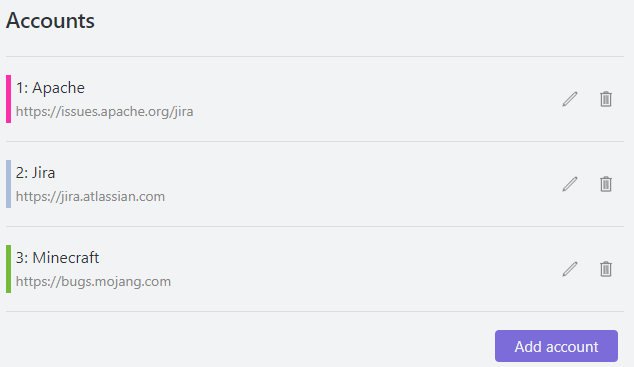
Alias
Mnemonic name of the account used to identify it.
Host
The host is the base URL of the Jira instance. No matter if you use Jira Cloud or Jira Server, the way to get the host is the same.
For example, if you are working on a user story like:
https://issues.apache.org/jira/browse/AMQCPP-711
the host would be:
https://issues.apache.org/jira
Authentication Types
The plugin supports the following authentication types:
- Open
- Basic Authentication
- Jira Cloud
- Bearer Token
Authentication Type: Open
This type of authentication is used to access public Jira instances as a guest. The advantage of this type of authentication is that you don't need to provide and store any credentials in the plugin, but very often, Jira instances don't allow this type of authentication in order to keep the data private.
Some example of Jira instances that support this type of authentication are:
https://jira.atlassian.com/
https://issues.apache.org/jira
https://jira.secondlife.com/jira
This type of authentication don't allow to use function like currentUser() in the JQL because there is no user logged in.
Authentication Type: Basic Authentication
This is the recommended authentication type when the plugin interacts with Jira Server.
The username and password are the same you use to login in the Jira website. If you are already logged in, you can try to open a browser incognito window and access to your Jira instance. The browser will ask you to login and you can try your credentials.
The specifications of this type of authentication can be found in the RFC 7617.
Authentication Type: Jira Cloud
This is the recommended authentication type when the plugin interacts with Jira Cloud.
You can create a new API token in Jira Cloud from Account Settings > Security > Create and manage API tokens (Official Documentation). It is usually recommended to have generate a dedicated API token for this plugin.
Authentication Type: Bearer Token
This authentication is used to access Jira instances that uses OAuth2.0.
The specifications of this type of authentication can be found in the RFC 6750.
Priority
The priority defines the order in which the accounts should be used to retrieve the data. It is recommended to put an higher priority to the accounts that are used the most in the Obsidian.md notes.
Color band
To help identify the Jira account used by each tag, it is possible to associate a color to each account. The color should be written in hexadecimal notation.

Predefined Labels
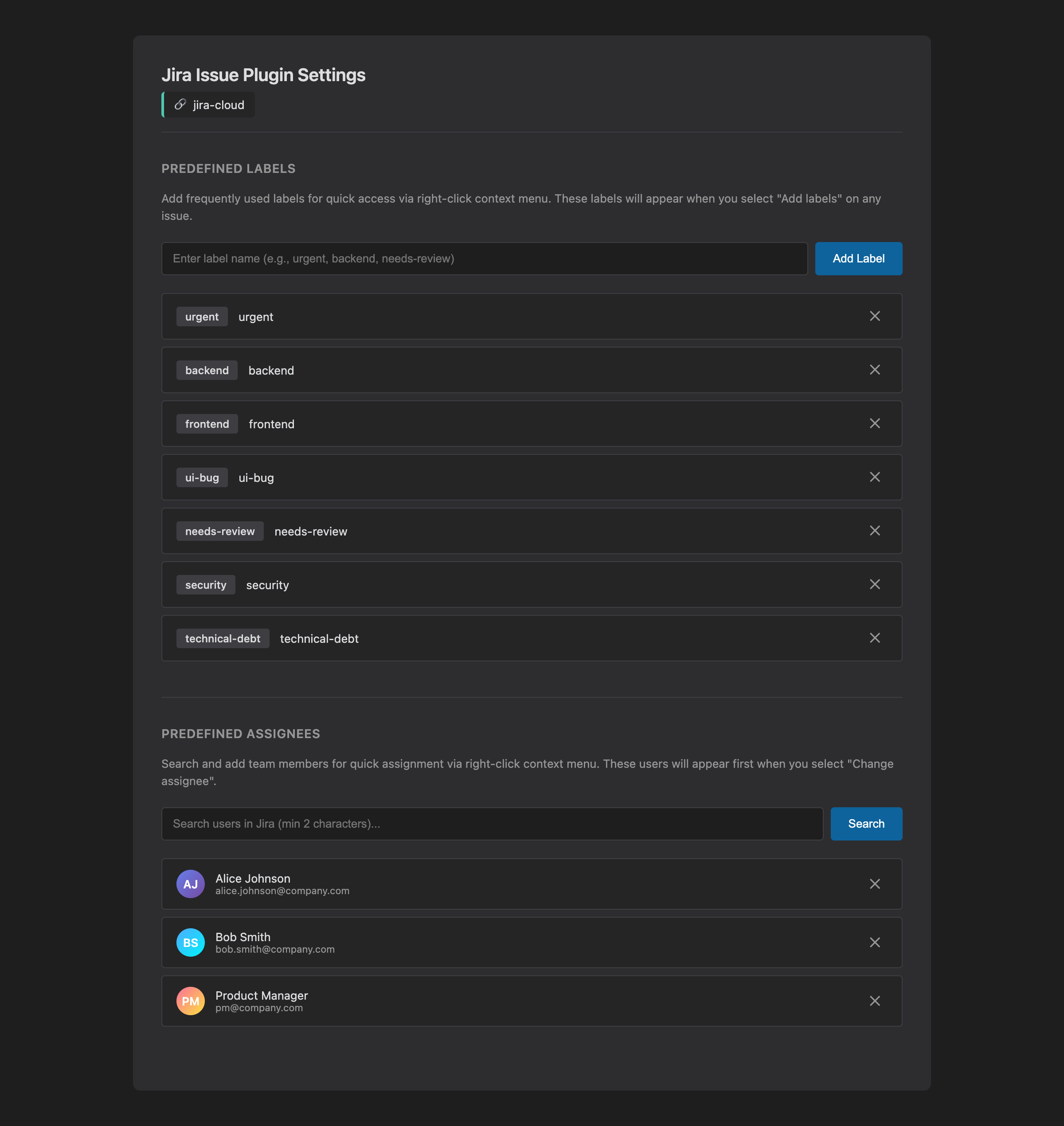
Predefined labels enable quick label management via the right-click context menu on any issue. Instead of typing labels each time, you can select from a preset list.
Location: Settings → Jira Issue → [Account Name] → Labels
Adding Predefined Labels
- Navigate to your account settings
- Find the "Predefined Labels" section
- Enter a label name in the text input field
- Click "Add" or press Enter
- The label appears in the list below
Example labels:
urgentbackendui-bugneeds-reviewtechnical-debt
Using Predefined Labels
- Right-click on any issue (inline, fence block, search result, kanban card)
- Select "Add labels" from the context menu
- Modal shows all predefined labels
- Labels already on the issue are disabled to prevent duplicates
- Select labels and click "Add Selected"
- Changes sync to Jira and update the display immediately
Removing Predefined Labels
Click the "✕" button next to any label in the settings to remove it from the predefined list. This only removes it from quick access—it doesn't affect existing issues.
Note: Labels are case-sensitive in Jira. Backend and backend are different labels.
Predefined Assignees
Predefined assignees provide quick access to frequently assigned team members when changing issue assignees. Instead of searching for users each time, you can select from presets with avatars.
Location: Settings → Jira Issue → [Account Name] → Assignees
Adding Predefined Assignees
- Navigate to your account settings
- Find the "Predefined Assignees" section
- Use the search field to find users in Jira (minimum 2 characters)
- Search results appear with user names and avatars
- Click "Add" next to a user to save them as a preset
- The user appears in the predefined list with avatar and display name
Tip: Add your most frequently assigned team members for fastest workflow.
Using Predefined Assignees
- Right-click on any issue
- Select "Change assignee" from the context menu
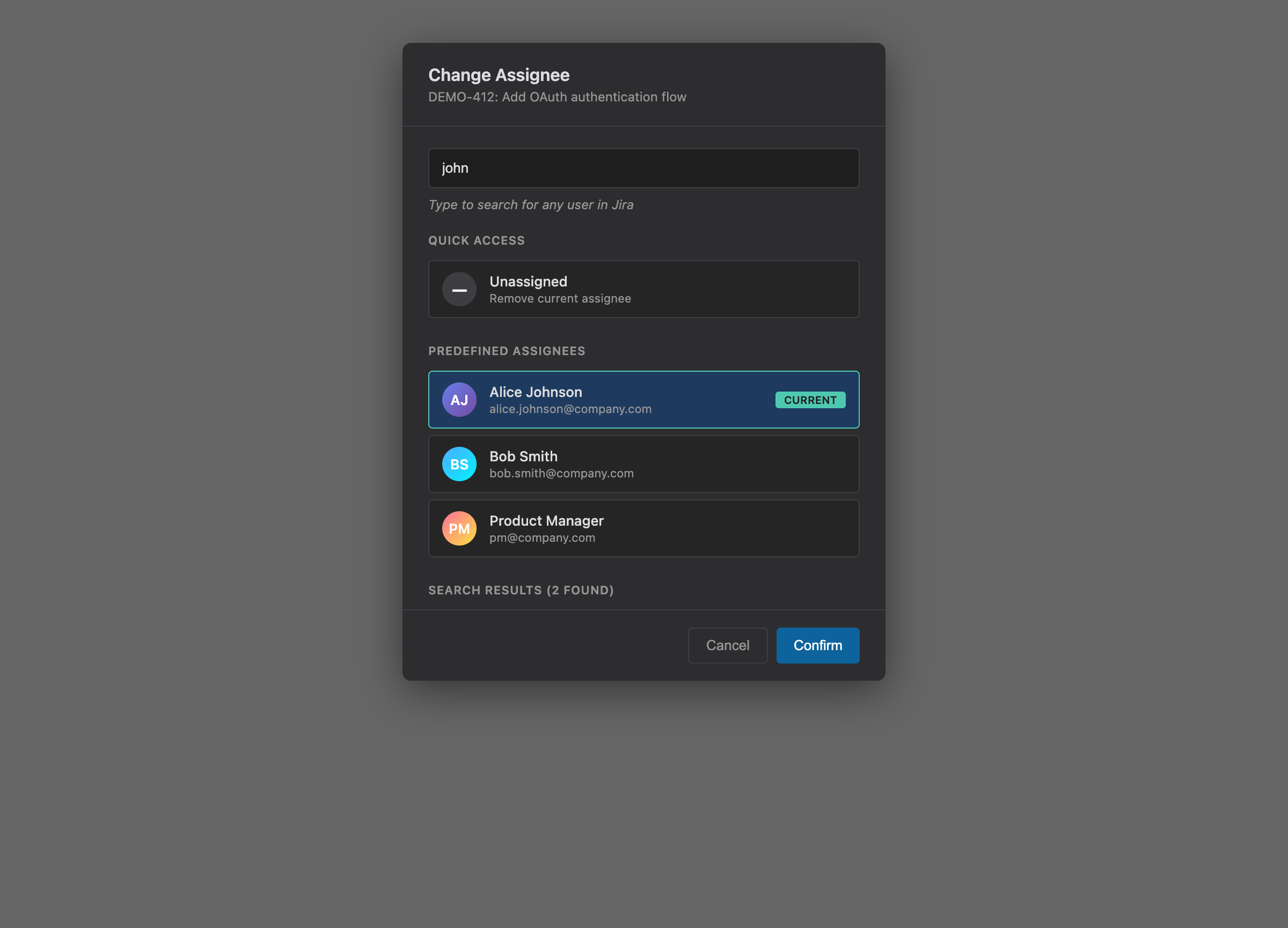
- Modal shows:
- Unassigned option (to remove current assignee)
- Predefined assignees with avatars (from settings)
- Search field for finding any user in Jira
- Select an assignee and click "Confirm"
- Change syncs to Jira and updates the display
Current assignee indicator: The currently assigned user is marked with "(current)" in the modal.
Searching for Assignees
If the user you need isn't in the predefined list:
- Open the assignee modal (right-click → "Change assignee")
- Type at least 2 characters in the search field
- Search results appear below (300ms debounce for performance)
- Results show avatars and display names
- Select user and click "Confirm"
Note: Search results are separate from predefined assignees. If a user appears in both lists, they won't be duplicated.
Removing Predefined Assignees
Click the "✕" button next to any user in the settings to remove them from the predefined list. This only removes them from quick access—existing issue assignments are not affected.
Technical Details
Stored data per assignee:
accountId- Jira internal user ID (used for API calls)displayName- User's display name shown in UI
When you add a predefined assignee, the plugin fetches and stores both values. This ensures assignments work correctly even if display names change in Jira.
People Field Mappings
People Field Mappings allow you to configure custom user-type fields for bulk assignment. Many Jira workflows use custom fields like "Code Reviewer", "QA Engineer", or "Product Owner" that accept user values. This feature lets you update multiple such fields in a single action.
Location: Settings → Jira Issue → [Account Name] → People Field Mappings
Use Case
Imagine you have these custom fields in Jira:
- Code Reviewer (customfield_10100) - Who reviews the code
- QA Engineer (customfield_10101) - Who tests the issue
- Technical Writer (customfield_10102) - Who documents the feature
Instead of opening Jira and updating each field separately, you can:
- Right-click an issue in Obsidian
- Select "Assign to fields"
- Choose which fields to update
- Search and select a user
- Click "Apply" to update all selected fields at once
Adding People Field Mappings
- Navigate to your account settings
- Find the "People Field Mappings" section
- Enter a display name (e.g., "Code Reviewer")
- Enter the field ID (e.g., "customfield_10100")
- Click "Add"
Finding Field IDs:
- Go to Settings → [Account] → Custom Fields
- Click "Refresh Custom Fields" to fetch from Jira
- Look for fields with "User" type
- Copy the field ID (customfield_XXXXX)
Using People Field Mappings
- Right-click on any issue (inline, fence block, search result, kanban card)
- Select "Assign to fields" from the context menu
- The modal shows:
- Checkboxes for each configured field
- Search field for finding users
- Predefined assignees (if configured)
- Check the fields you want to update
- Search and select a user
- Click "Apply to N fields"
Note: The plugin remembers your last selected fields between uses.
Removing People Field Mappings
Click the "✕" button next to any mapping to remove it. This only removes the configuration—existing field values in Jira are not affected.
Technical Details
Stored data per mapping:
displayName- Friendly name shown in the checkbox listfieldId- Jira's internal field identifier (customfield_XXXXX)
API behavior:
- Updates are batched into a single API call per issue
- Only checked fields are updated
- The selected user's accountId is used for the update
Security risks
Credentials storage
The credentials are stored in clear in the configuration file of this plugin. The configuration file is located at:
<your vault>/.obsidian/plugins/obsidian-jira-master/data.json
Pay attention when you synchronize the notes across devices because the credentials may be copied as well.
API Calls
For security reason, it is recommended to use a host with https protocol. Other protocols like http do not encrypt the traffic and your credential may be at risk.