Inline Issue
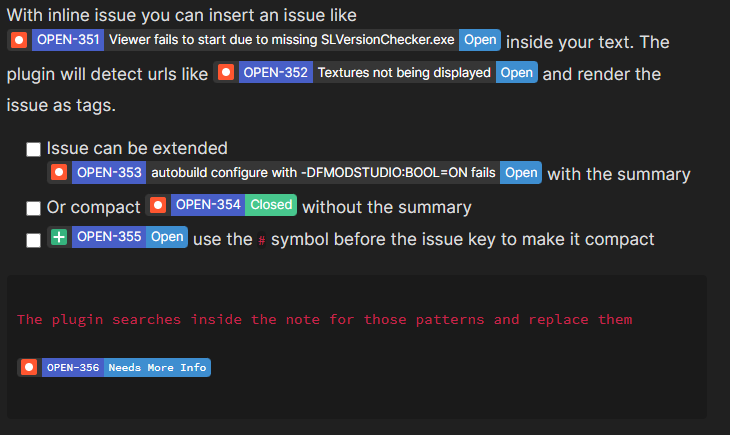
Inline issues can be used insert a reference to a Jira issue inline with your note's text, without creating a dedicated fence block.
They can be added inside paragraphs, titles, bullet points list, checkbox lists, fence blocks.
Example:
Syntax:
With inline issue you can insert an issue like JIRA:OPEN-351 inside your text.
The plugin will detect urls like https://jira.secondlife.com/browse/OPEN-352 and render the issue as tags.
- [ ] Issue can be extended JIRA:OPEN-353 with the summary
- [x] Or compact JIRA:-OPEN-354 without the summary
- [ ] JIRA:-OPEN-355 use the `-` symbol before the issue key to make it compact
```
The plugin searches inside the note for those patterns and replace them
JIRA:-OPEN-356
```
How to use it
An inline issue is rendered when the plugin detects in the note an "inline issue prefix" followed by an issue key.
The default value for the prefix is JIRA: and it can be changed in the configuration.
See more
It is possible to render an issue tag by only putting the URL to the issue on your Jira server.
Example:
https://my-project.jira.com/browse/ABCD-1234
This feature can be activated in the plugin settings. See more
Compact mode
An inline issue will be rendered showing the:
- Type icon
- Key
- Summary
- Status
Another rendering option is the compact mode that hides the summary in order to have a shorter tag that will take less spaces in the note.
The compact mode can be activated by putting a - symbol between the prefix and the issue key.
Example:
Non compact mode: JIRA:AAA-123
Compact mode: JIRA:-AAA-123
The compact mode for URL can be enabled putting a - before the URL.
Example:
Non compact mode: https://my-project.jira.com/browse/ABCD-1234
Compact mode: -https://my-project.jira.com/browse/ABCD-1234
Interactive Features
Inline issues support full interactivity for quick issue management without leaving Obsidian.
Visual Enhancements
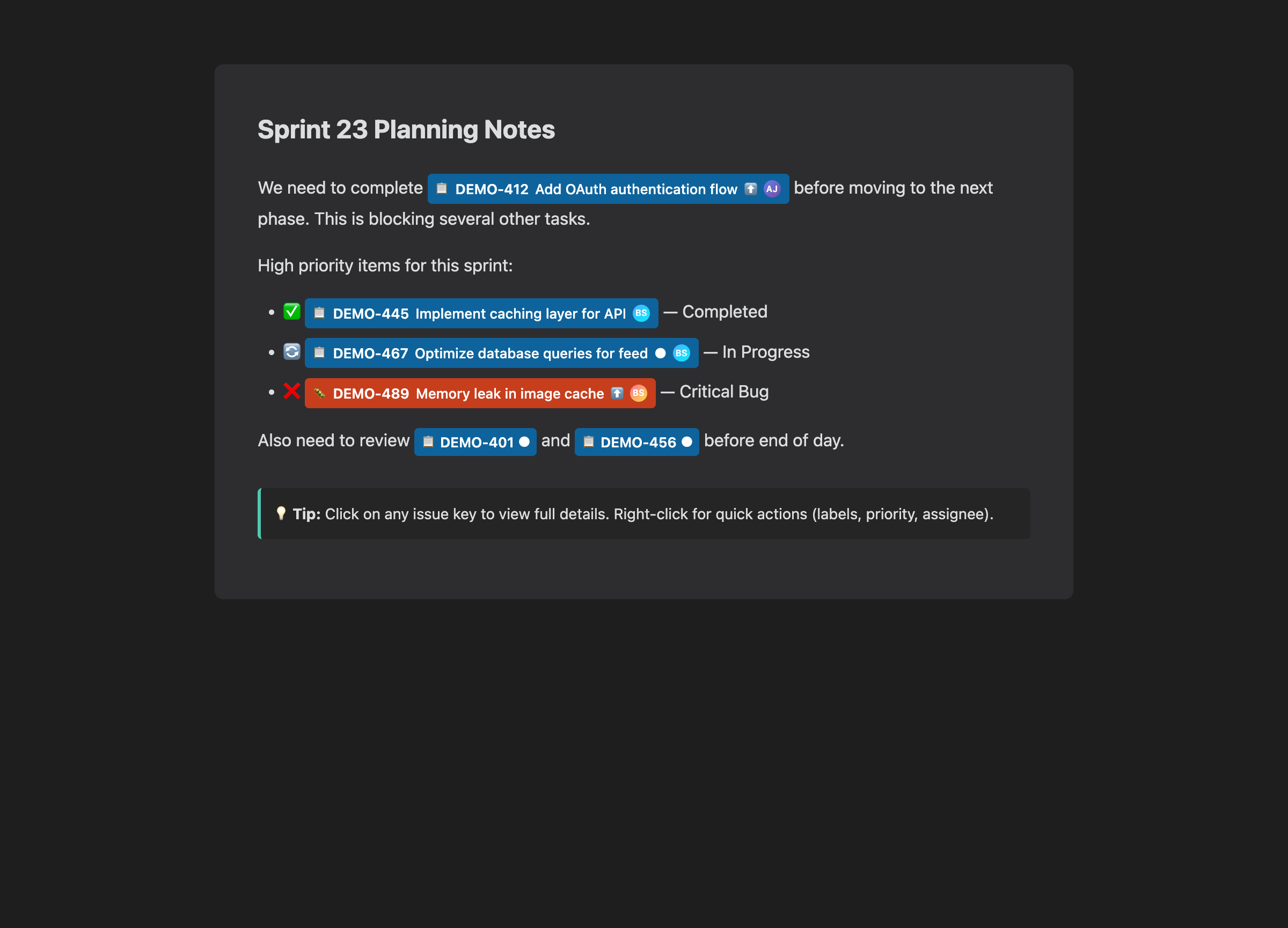
Inline issues now display:
- Priority icon - Visual indicator for issue priority (Highest, High, Medium, Low, Lowest)
- Issue type icon - Story, Task, Bug, Epic icons
- Assignee avatar - Small avatar of the assigned user
- Status color - Color-coded status badge
Click to View Details
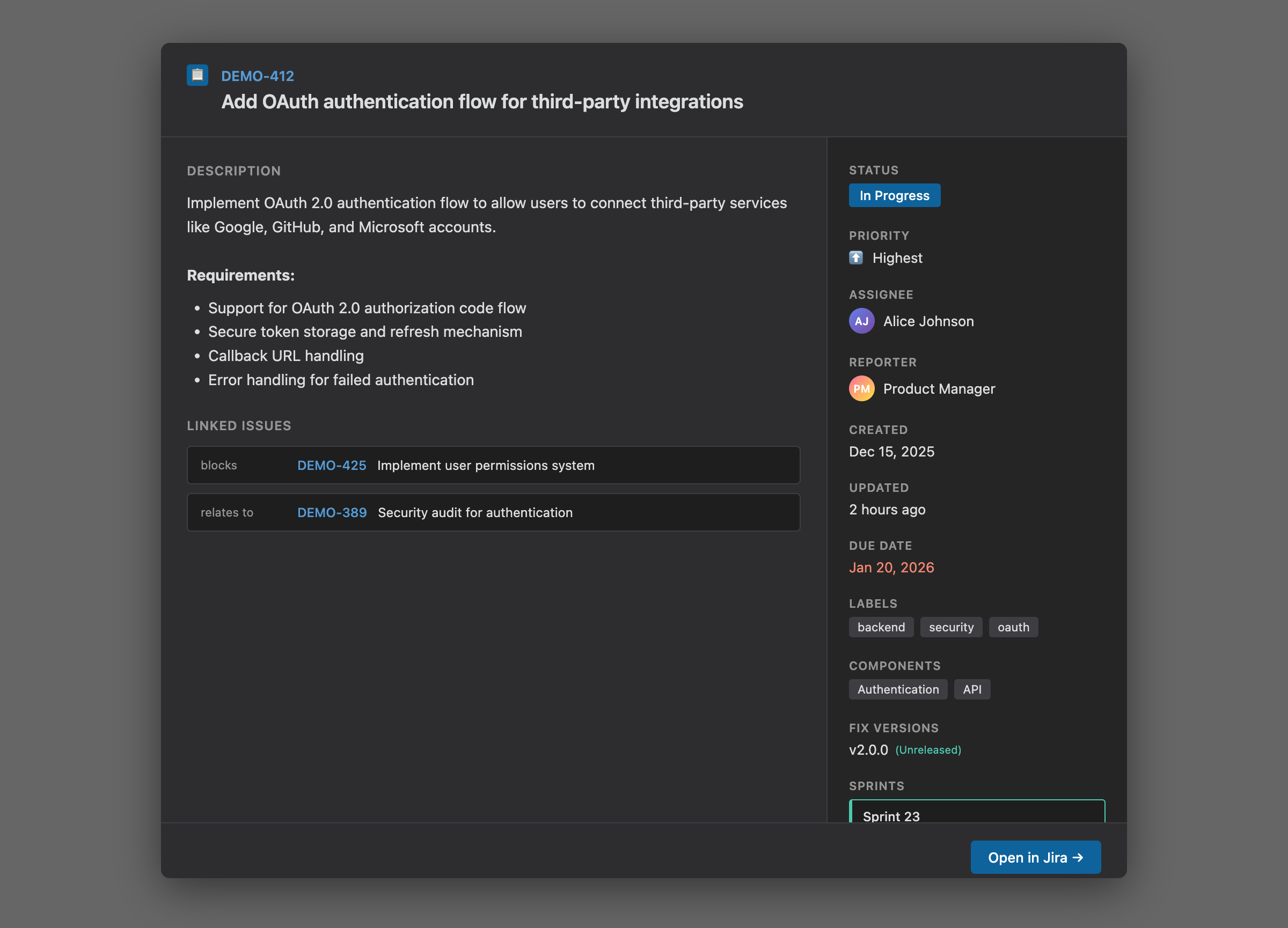
Click on any inline issue key to open the Issue Detail Modal with comprehensive information:
- Header: Issue type icon, key (linked to Jira), and summary
- Description: Full issue description
- Linked Issues: Related issues with link types
- Sidebar Fields:
- Status (color-coded by category)
- Priority (with icon)
- Assignee (with avatar or "Unassigned")
- Reporter (with avatar)
- Created, Updated, Due Date
- Labels (as badges)
- Components
- Fix Versions (with release status)
- Sprints (sorted: active first, with state indicators)
- Time Tracking (progress bar showing logged vs remaining)
- Footer: "Open in Jira" button for quick access to the issue in your browser
Tip: Hold Cmd/Ctrl while clicking to open the Jira URL in a new tab directly, bypassing the modal.
Right-Click Context Menu
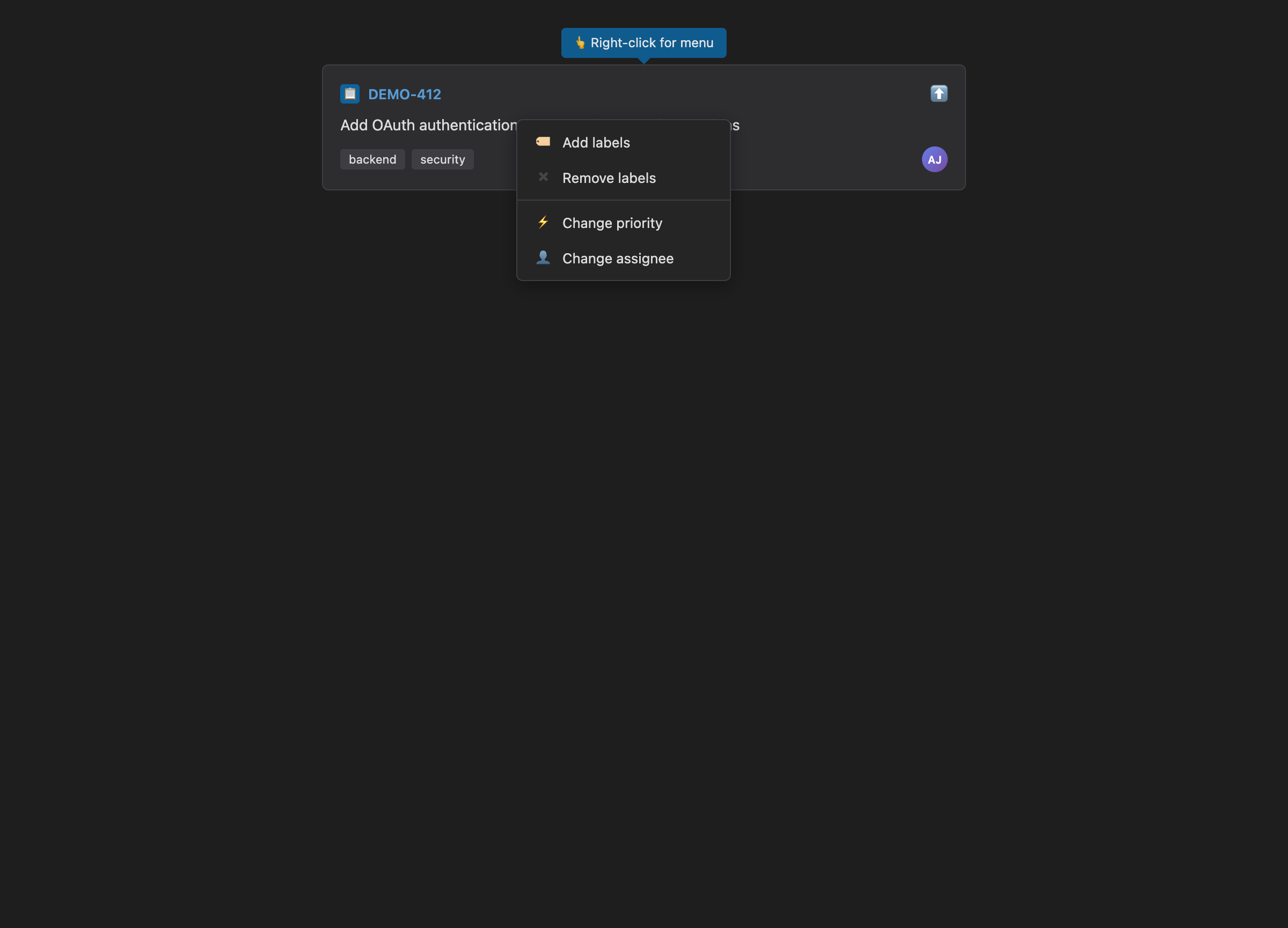
Right-click on any inline issue to access quick actions:
- Add labels - Choose from predefined labels configured in settings
- Remove labels - Remove existing labels (only shown if issue has labels)
- Change priority - Select from available priorities in your Jira instance
- Change assignee - Choose from predefined assignees or search for any user
All changes are immediately:
- Updated in Jira via API
- Cached locally for fast access
- Re-rendered in the note
Label Management
Adding Labels:
- Right-click on an inline issue
- Select "Add labels"
- Choose from predefined labels (configured in Settings → Jira Issue → [Account] → Labels)
- Labels already on the issue are disabled to prevent duplicates
- Click "Add Selected" to apply
Removing Labels:
- Right-click on an inline issue that has labels
- Select "Remove labels"
- Select labels to remove
- Click "Remove Selected"
Setting Up Predefined Labels: Go to Settings → Jira Issue → [Your Account] → Labels section to add frequently used labels for quick access.
Priority Changes
- Right-click on an inline issue
- Select "Change priority"
- Modal shows all available priorities from your Jira instance with icons
- Current priority is marked with "(current)"
- Select new priority and click "Confirm"
The priority icon updates immediately in your note.
Assignee Management
Quick Assign from Presets:
- Right-click on an inline issue
- Select "Change assignee"
- Choose from predefined assignees (configured in settings)
- Select "Unassigned" to remove the current assignee
Search for Any User:
- Right-click and select "Change assignee"
- Type at least 2 characters in the search field
- Search results appear with avatars (300ms debounce)
- Select user and click "Confirm"
Setting Up Predefined Assignees: Go to Settings → Jira Issue → [Your Account] → Assignees section:
- Use the search field to find users in Jira
- Click "Add" to save them as presets
- Predefined assignees appear first in the modal with avatars
Update Notifications
After successfully updating an issue (labels, priority, assignee), you'll see a success notification in Obsidian. If the update fails (e.g., network issue, permission denied), an error notification will appear with details.