Jira Search
This fence component allows to insert a table that displays the results of a Jira query. The syntax to write the query is described in the official JQL Documentation.
Basic usage
The basic usage of this block is to put the query directly in the fence. Example:
```jira-search
resolution = Unresolved AND assignee = currentUser() AND status = 'In Progress' order by priority DESC
```
The columns displayed in the table can be configured in the settings. See more
Advanced usage
It is possible to describe in each jira-search fence how the search results are rendered using the following keyworkds:
| Keyword | Description | Default | Values |
|---|---|---|---|
type | Rendering mode of the search results | TABLE | TABLE or LIST |
query | Query to use with Jira to retrieve the results | ||
limit | Maximum number of items to display | Use value from settings | Integer number |
columns | List of columns to render (Available columns) | Use value from settings | Comma separated list |
account | Explicitly select an account providing the alias | Try all account by priority | Account alias |
Example:
```jira-search
type: TABLE
query: status = 'In Progress' order by priority DESC
limit: 15
columns: KEY, SUMMARY, -ASSIGNEE, -REPORTER, STATUS
account: Default
```
Standard fields
The plugin is able to render as columns the following Jira standard fields:
KEY, SUMMARY, DESCRIPTION, TYPE, CREATED, UPDATED, REPORTER, ASSIGNEE, PRIORITY, STATUS, DUE_DATE,
RESOLUTION, RESOLUTION_DATE, PROJECT, ENVIRONMENT, LABELS, FIX_VERSIONS, COMPONENTS,
AGGREGATE_TIME_ESTIMATE, AGGREGATE_TIME_ORIGINAL_ESTIMATE, AGGREGATE_TIME_SPENT,
TIME_ESTIMATE, TIME_ORIGINAL_ESTIMATE, TIME_SPENT, AGGREGATE_PROGRESS, PROGRESS, LAST_VIEWED,
DEV_STATUS
- Columns names are case insensitive
- If the column starts with
-, the compact mode is used
Example:
```jira-search
query: status = 'In Progress' order by priority DESC
columns: key, -key, type, -type, reporter, -reporter, created, -created
```

Custom fields
Jira non standard fields (a.k.a. custom fields) can be inserted using the $ symbol.
Example:
```jira-search
query: status = 'In Progress' order by priority DESC
columns: key, summary, $Epic Link, $Global Rank, $12313422, -$12313499
```
It is possible to provide the ID number of the custom field or its name.
Link to notes
The special column NOTES can be used with jira-search tables to create a column that shows all the notes that start with the issue key.
Example:
```jira-search
query: status = 'In Progress' order by priority DESC
columns: key, summary, status, notes
```
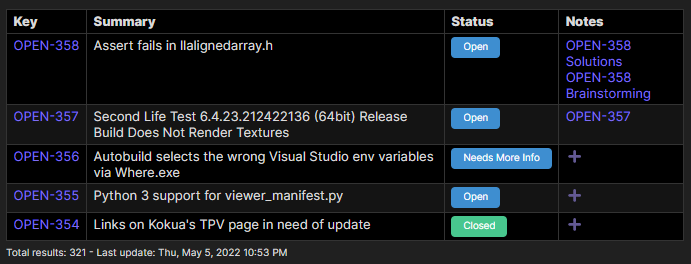
This column is useful to connect the issues with your notes about them. The note title must start with the issue key but it can also contains other letters after that. Examples:
AAA-123
AAA-123 User story summary
AAA-123 Custom string
If no notes are found, a ➕ button will be shown in order to allow the creation of a new note directly from this table.
Frontmatter
You can also access the frontmatter section of the linked notes using the jsonpath syntax after the column NOTES. Example:
query: status = 'In Progress' order by priority DESC
columns: key, notes, notes.title, notes.status, notes.tags, notes.tags[0], notes..book[?(@.price<30 && @.category=="fiction")]
Footer
At the bottom of each search table you have several information:
- Total results of the query
- Alias of the account used
- Last execution date
- Refresh results button

Interactive Features
Issues displayed in jira-search tables and lists support full interactivity for managing issues directly from Obsidian.
Click to View Details
Click on any issue key in the search results to open the Issue Detail Modal with comprehensive information including:
- Full description
- Linked issues with relationship types
- All fields (status, priority, assignee, reporter, dates, labels, components, fix versions)
- Sprint information (sorted with active sprints first, with state indicators)
- Time tracking with visual progress bar
- "Open in Jira" button for quick browser access
Hold Cmd/Ctrl while clicking to open the issue in Jira directly, bypassing the modal.
See Inline Issue - Click to View Details for full modal documentation.
Right-Click Context Menu
Right-click on any issue row (TABLE mode) or issue card (LIST mode) to access quick actions:
- Add labels - Select from predefined labels configured in settings
- Remove labels - Remove existing labels from the issue
- Change priority - Update issue priority with visual icons
- Change assignee - Assign to predefined users or search for anyone in Jira
All changes are:
- Immediately sent to Jira via API
- Cached locally for performance
- Re-rendered in the table/list
Visual Enhancements
Search results now display:
- Priority icons - Visual indicators for issue priority levels
- Issue type icons - Story, Task, Bug, Epic, etc.
- Assignee avatars - User avatars in assignee columns
- Color-coded statuses - Status badges with colors matching Jira categories
Configuration for Quick Actions
To enable predefined labels and assignees for faster workflow:
- Go to Settings → Jira Issue → [Your Account]
- Predefined Labels section:
- Add frequently used labels (e.g., "urgent", "backend", "ui-bug")
- These appear in the "Add labels" context menu
- Predefined Assignees section:
- Search for team members in Jira
- Click "Add" to save them as quick-access presets
- Predefined assignees appear first in the assignee modal with avatars
See Inline Issue - Interactive Features for detailed workflows on label management, priority updates, and assignee search.