Jira Issue
This fence component allows to insert a section where you can put several issues references.
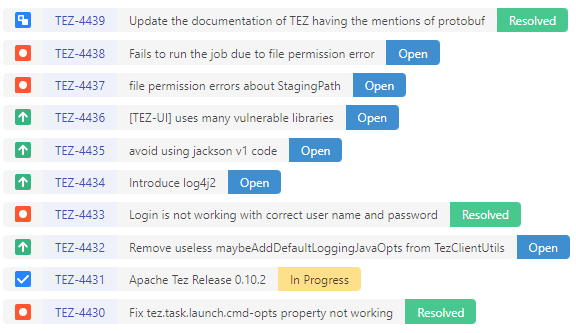
This markdown fence is meant to be used to store many references that may not be related but you want to keep track of them.
You can input issues one per line and they can be referenced using the key or the Jira Issue URL. You can also insert comments in this fence in order to give some context to those potentially unrelated issues.
Example:
```jira-issue
AAA-111
AAA-222
https://my.jira-server.com/browse/BBB-333
# This is a comment
```
Interactive Features
Issues displayed in jira-issue blocks support full interactivity for managing issues directly from Obsidian.
Click to View Details
Click on any issue key to open the Issue Detail Modal with comprehensive information including description, linked issues, all fields, sprint info, and time tracking. Hold Cmd/Ctrl while clicking to open the issue in Jira directly.
See Inline Issue - Click to View Details for full modal documentation.
Right-Click Context Menu
Right-click on any issue in the list to access quick actions:
- Add labels - Select from predefined labels
- Remove labels - Remove existing labels
- Change priority - Update issue priority
- Change assignee - Assign to predefined users or search for anyone
All changes sync to Jira and update the display immediately.
Configuration
To enable quick label and assignee management:
- Go to Settings → Jira Issue → [Your Account]
- Configure Predefined Labels - Add frequently used labels
- Configure Predefined Assignees - Search and add team members
See Inline Issue - Interactive Features for detailed documentation on label management, priority changes, and assignee workflows.